How to remove malware from Mac: The complete cleanup checklist


While macOS malware exists and continues to grow, it remains less prevalent than malware targeting Windows. Apple uses multiple layers of protection, including the App Store, Gatekeeper, Notarization, and XProtect, to help block known malware and reduce the risk from untrusted or altered apps. However, some threats can still slip through and put sensitive data at risk.
This guide explains how to recognize, prevent, and remove malware to protect your data and keep your Mac running smoothly.
Signs of malware infection on a Mac
Some types of malware on macOS run silently in the background, while others cause obvious disruptions. Spotting the warning signs early can help limit damage.
Slower performance
Malware can cause performance issues by running background processes that consume CPU power, memory, or bandwidth without the user’s knowledge. For example, some malware hijacks system resources to mine cryptocurrency or support botnet activity, such as distributed denial-of-service (DDoS) attacks.
Changed browser settings
Browser hijackers can change browser settings, track searches, and redirect web traffic. You may notice unfamiliar toolbars, browser extensions you never installed, or changes to your default search engine.
Redirected searches are another common sign. Clicking a legitimate result may lead to a malicious website designed to steal data or push more unwanted software.
Excessive pop-ups
A spike in pop-ups, banners, or intrusive ads may indicate adware or another unwanted program. These ads can expose users to malicious downloads, scams, or phishing pages. Some unwanted software affects only the browser, while other variants may trigger pop-ups more broadly across the system.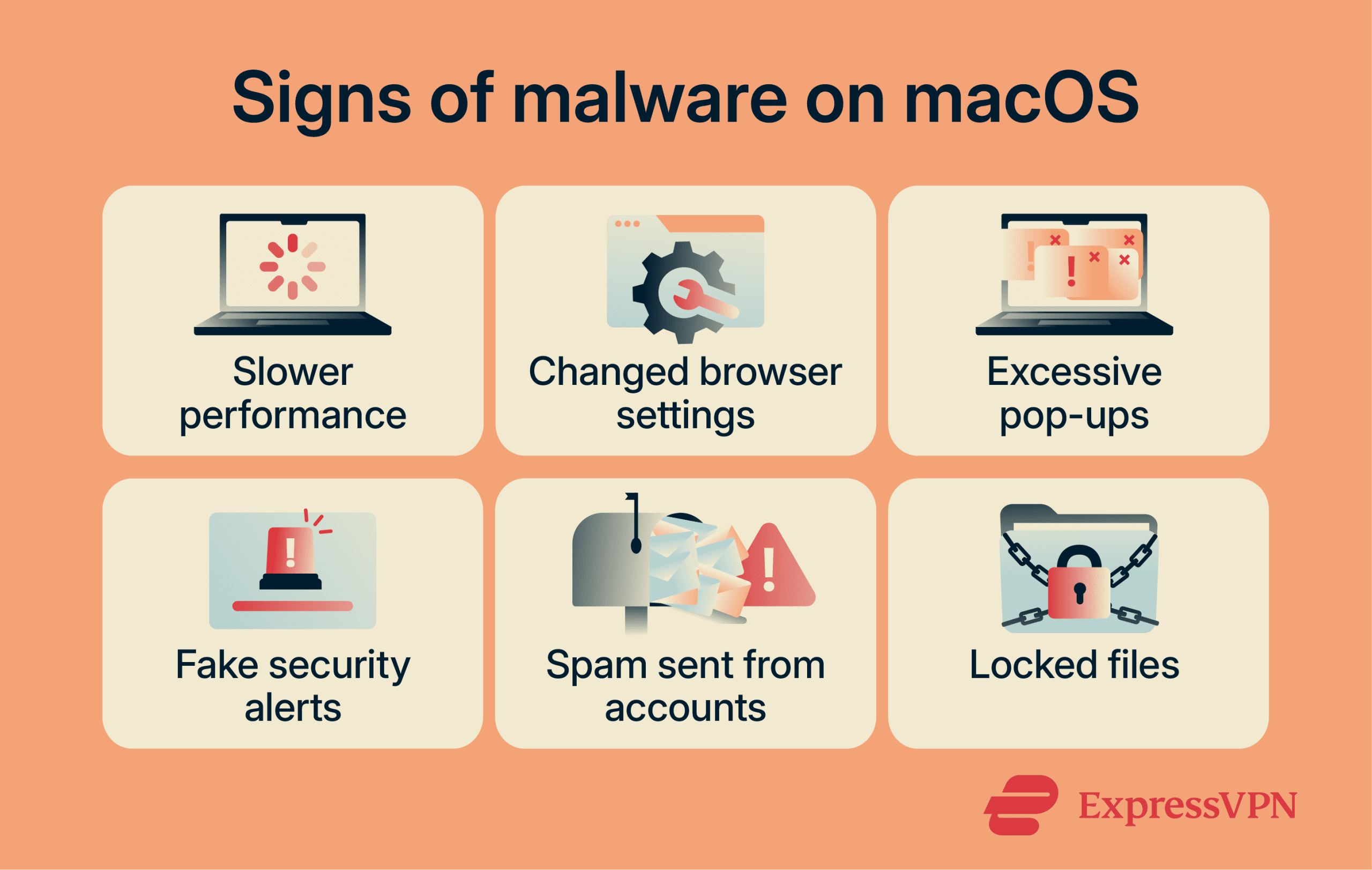
Fake security alerts
Alerts claiming a malware infection when no scan was run often point to scareware or a tech support scam. These alerts can appear as full-screen pop-ups or persistent browser notifications that mimic legitimate security software, using alarming language to pressure users into acting quickly. The goal is usually to frighten users into downloading fake tools, calling a scam number, or paying for unnecessary services.
Spam from your accounts
Emails or social media messages sent without the account owner’s knowledge, especially those containing suspicious links, can indicate malware or account compromise. Some malware steals login credentials or uses a device to automatically send spam. However, spam doesn't always mean the Mac itself is infected; phishing or a separate account breach can also be the cause.
Also read: How to stop spam with anonymous email forwarding.
Locked files
Ransomware encrypts files and cuts off access to them. Attackers then demand payment, usually in cryptocurrency, in exchange for a decryption key. If files suddenly become inaccessible and a ransom note appears, ransomware may be the cause.
Read more: Signs that your MacBook is hacked.
How to check for malware on Mac
You can check for malware on macOS manually by reviewing device activity, apps, downloads, and configuration profiles.
Use Activity Monitor
Activity Monitor on macOS gives you a live view of how much CPU, memory, and network resources each process uses. Unusual spikes in resource usage, especially when your Mac is idle, can be a warning sign worth investigating.
Look out for processes or apps you don’t recognize, especially if they consume unusual resources or appear linked to software you didn’t install. Some legitimate apps use helper processes, so unfamiliar activity alone does not confirm malware.
Activity Monitor doesn't show whether an app is signed or notarized by default. To investigate further, you can use Terminal tools such as codesign, but keep in mind that a valid signature doesn't guarantee an app is safe. On macOS, Gatekeeper also checks whether downloaded software is signed, notarized, and free of known malware.
To open Activity Monitor, go to your Applications > Utilities, or search for it in Spotlight.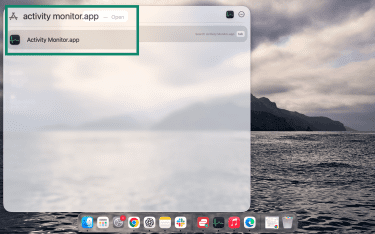
Check your Applications and Downloads folders
Check your Applications and Downloads folders for anything you don't recognize or didn't install.
In Finder
Open the Applications folder and scan for apps with odd names or that appeared recently. Right-click anything suspicious and select Get Info to see when it was added and who made it.
In the Downloads folder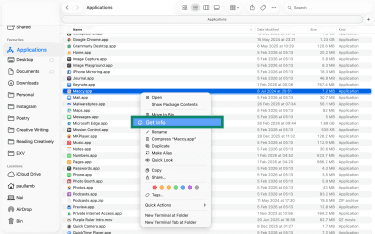
Look for files or installers you don't remember saving. Move anything suspicious to the Trash and empty it if you’re sure it isn’t needed.
Check for suspicious configuration profiles
Configuration profiles are system files that let organizations control Mac settings remotely. Workplaces and schools often use them to manage devices, but an unknown profile can also indicate that settings have been changed without your approval.
To check:
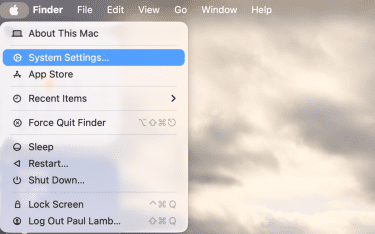
- Open System Settings from the Apple menu.
- Go to General, then select Device Management.
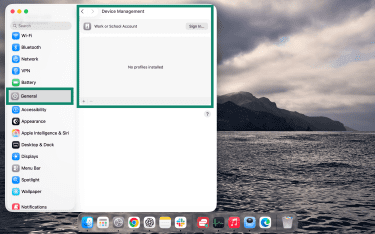
- Review the listed profiles for anything you don’t recognize. To remove a suspicious profile, select it, click Remove Profile, then enter your administrator password if prompted.
Run a scan with trusted antivirus software
Manual checks can miss signs of malware, so it’s worth running a scan with reputable antivirus software. A reliable scanner can help identify known malware and potentially unwanted software that built-in tools or casual manual checks may miss.
When downloading antivirus software:
- Go directly to the official website rather than third-party sources.
- Check reviews and verify the developer name carefully, including minor spelling variations.
Many trusted services offer basic scans for free. For deeper scanning or real-time protection, a paid subscription may be required.
Learn more: Do I need an antivirus on my computer?
How to remove malware from Mac: Step-by-step guide
1. Disconnect from the internet
Many types of malware rely on an active internet connection to contact remote servers, download additional malicious files, steal data, or display intrusive ads. Cutting off internet access limits further damage.
If you suspect a malware infection, disconnect your Mac from the internet. Unplug your Ethernet cable if you use one, or turn off Wi-Fi. To do that, open System Settings > Wi-Fi, then switch Wi-Fi off using the toggle. If the Wi-Fi status menu is visible in the menu bar, you can also turn it off there.
2. Boot into Safe Mode
In Safe Mode, macOS loads only essential system components, which can help isolate problems caused by login items, extensions, or other nonessential software. Safe Mode also clears certain system caches. For step-by-step instructions, see our detailed guide on booting your Mac in Safe Mode.
3. Remove suspicious apps
Malware is often disguised as legitimate software. Watch for warning signs like:
- Programs you don’t remember installing, especially ones that appeared around the time issues began.
- Vague, generic names such as “Mac Cleaner” or “Update Tool.”
- Permission requests beyond what the app actually requires, like a PDF reader asking for camera or microphone access.
- Programs that continue running or reappear after you try to close them.
From Finder, open Applications, find any suspicious app, and drag it to the Bin. Then, open the Bin and click Empty to delete it permanently.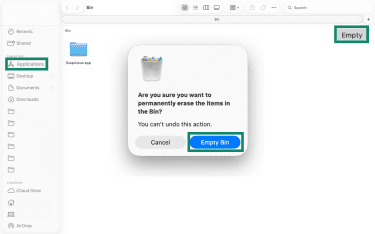
4. Remove unwanted Login Items and Launch Agents
Malware often launches automatically when the device boots up. Checking login items and background agents can help identify anything that shouldn’t be running.
- Open System Settings from the Apple menu.
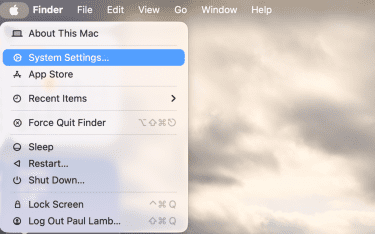
- Click General, then Login Items & Extensions.
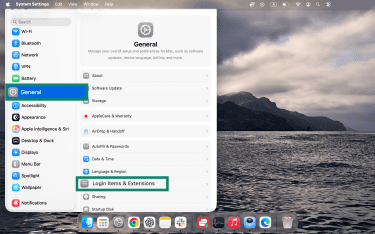
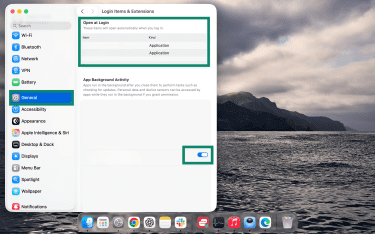
- Review the list under Open at Login and any section for background apps or activity. Turn off the toggle next to any app you want to remove.
Check for hidden Launch Agents
In Finder, click Go in the menu bar, then Go to Folder, and enter: /Library/LaunchAgents.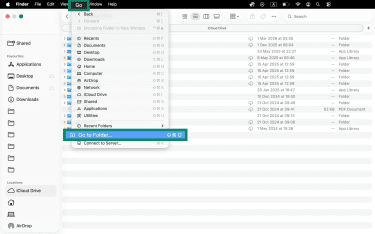
Look for unfamiliar .plist files, particularly those with random strings or misleading names. Research any uncertain file names before deleting, as removing legitimate system files can cause instability.
5. Remove malware from your browsers
Removing a browser hijacker often takes more than one step. Check your extensions in Safari, Chrome, or Firefox and delete any you don’t recognize, especially those with broad permissions or recent install dates.
Clearing your cache and website data can help remove stored site data and reset unwanted browser changes, but it may not remove malware that is still running elsewhere on the Mac.
Here’s what steps look like on popular browsers.
Remove extensions on Chrome
- Click the three-dot icon in the top right > Extensions > Manage Extensions.
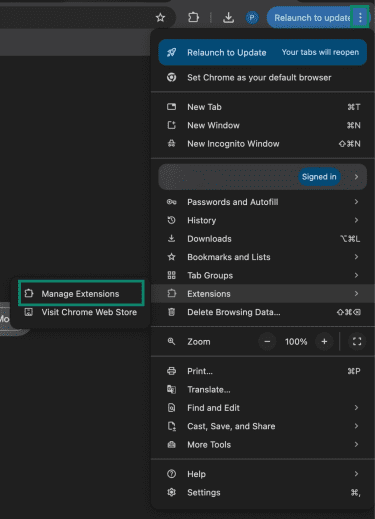
- Click Remove to uninstall any suspicious extensions.

Remove extensions on Firefox
- Click the three-line icon in the top-right > Extensions and themes.
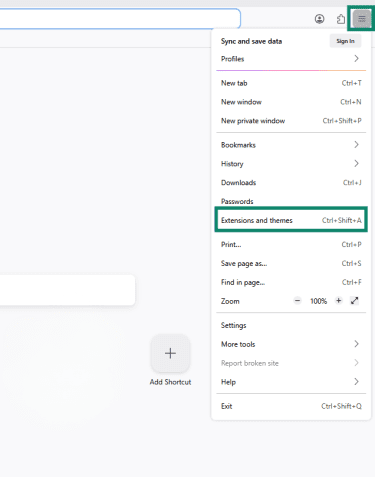
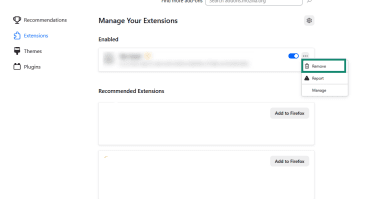
- Click the three-dot icon next to the unwanted extension, then select Remove.
Remove extensions on Safari
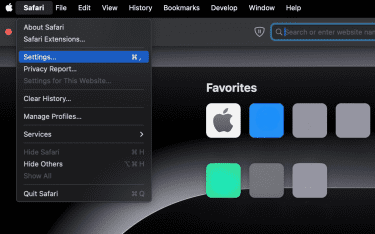
- Click Safari in the top menu bar > Settings.
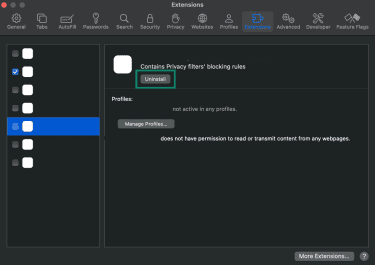
- Go to the Extensions tab and select an extension from the left sidebar, then click Uninstall.
Learn more: Malicious Chrome extensions: How to identify and remove them.
6. Run a scan and restart your Mac
After manually removing suspicious apps and browser extensions, run a full system scan with trusted antivirus software.
Once the scan is complete and any threats are removed, restart your Mac to clear active processes and check whether anything reloads at startup. Running a second scan afterward can help confirm the device is clean.
What to do if removal doesn’t work
If issues return after manual cleanup and a full scan, the malware may be more persistent than it first appeared. Some threats can survive standard removal steps and require a more thorough recovery approach.
Restore to factory settings
If you can’t confirm your Mac is clean, erasing it is often the most thorough recovery option for most users. It removes apps, personal data, and settings so you can start again with a clean system.
Before resetting, back up important personal files such as documents and photos. Be cautious about restoring apps, settings, or files from around the time the infection began, as they may reintroduce the problem.
Reset Mac using Erase Assistant (macOS Monterey or later)
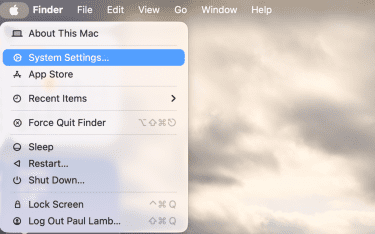
- Click the Apple menu and open System Settings.
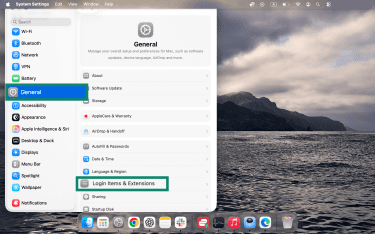
- Select General > Transfer or Reset.
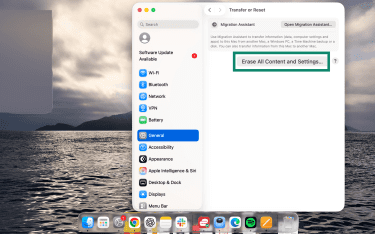
- Then click Erase All Content and Settings…
After the reset, update macOS and reinstall only the apps you need, downloading each directly from the official source. When restoring personal files, check them carefully before use.
Get professional help
If problems continue after a reset, or if you suspect ransomware or a targeted attack, contact Apple Support or an authorized service provider for help with the device itself. For suspected targeted compromise or business-critical systems, a cybersecurity professional or incident response team is better equipped to investigate and contain the threat.
If ransomware is involved, report it to the relevant authorities immediately. For example, In the U.S., the Cybersecurity and Infrastructure Security Agency (CISA) says victims can report ransomware incidents to the FBI, CISA, or the U.S. Secret Service.
How to prevent malware on Mac
While macOS has strong built-in security, your habits can still make a real difference in preventing malware.
Use built-in protections (XProtect, Gatekeeper, Notarization)
macOS includes built-in protections that help block known malware and reduce the risk from untrusted or altered apps. Apple describes these defenses as the App Store, Gatekeeper, combined with notarization, and XProtect.
Keep macOS and apps updated
Outdated software is one of the most common entry points for malware. Apple regularly releases updates that patch security vulnerabilities, so enabling automatic updates helps keep your Mac protected with minimal effort. Update apps through the App Store or the developer's official site to reduce the risk of exploitation.
Avoid harmful apps
Only download apps from the App Store or from developers you trust. Unsolicited update pop-ups and third-party download sites are common malware delivery methods. Research any app that requests excessive permissions before installing it.
Even on the App Store, it’s still smart to verify the developer and avoid lookalike apps designed to deceive. Apple reviews App Store apps and removes them for fraudulent activity when detected.
Be careful about browser extensions
Only install extensions from official stores and verify the developer name before adding anything. Extensions that request access to all websites or your full browsing history deserve extra scrutiny. Review the permissions carefully, especially if the extension can modify your default search engine or homepage.
Watch out for phishing attempts
Phishing attacks are another common way malware infects devices. Attackers often use emails with malicious links or attachments to trick people into clicking.
It’s important to look closely at emails before downloading attachments or interacting with any links. Here are some red flags to watch for:
- Lookalike email addresses: The message may appear to come from a legitimate business, but the sender address or domain is slightly altered, misspelled, spoofed, or otherwise doesn’t match the company’s official contact details.
- Generic greetings: Emails that don’t address the recipient by name can be a warning sign, especially when paired with other red flags.
- Urgency: Phishing emails often pressure the reader to act immediately, using alarming language such as “Your account will be suspended within 24 hours.”
Avoid downloading unlicensed software
Unlicensed or “cracked” software is a common malware risk and is often illegal. Files from torrent sites or unofficial download pages often bundle hidden malware alongside the app you want to download.
Even if the software appears to work normally, it may install adware, spyware, or other potentially unwanted software. Downloading licensed apps from official sources helps reduce the risk of getting a modified version designed to infect the device.
Pay attention to Apple Alerts
macOS uses Gatekeeper to block apps from unidentified developers, apps that cannot be verified, or software that may have been tampered with. If one of these warnings appears, do not continue unless the app’s source has been independently verified as legitimate.
FAQ: Common questions about removing malware from a Mac
Is it possible for a Mac to have malware?
How can I remove malware from my Mac for free?
Are Mac antivirus apps effective against malware?
How do I know if my Mac has malware?
Does Apple scan Macs for malware?
Can I use Windows antivirus software on my Mac?
Take the first step to protect yourself online. Try ExpressVPN risk-free.
Get ExpressVPN