Is Safari safe? A complete guide to security and privacy


Safari is generally safe to use: it does a solid job of keeping threats at bay and limiting how much of your activity is exposed online. But “safe” can mean different things depending on whether you care more about blocking trackers, avoiding malware, or generally maximizing your privacy.
In this guide, we look at the security tools Safari builds in. You’ll also find practical tips on which settings to tweak so you can get the strongest protection.
How Safari works and how that keeps you safe
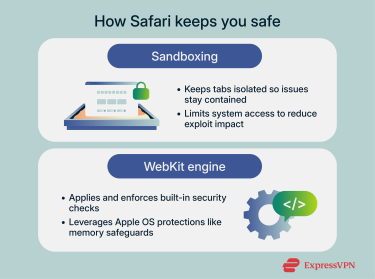
Safari is designed specifically for Apple devices, and that shared Apple-only ecosystem is part of what gives the browser its security baseline. No matter which device you're using, Safari relies on two core technologies that define how it loads pages and protects you online: sandboxing and the WebKit engine.
- Sandboxing: Safari runs inside a strict sandbox that isolates each tab and site into separate processes and controls how they communicate through Inter-Process Communication (IPC). This containment limits what web content can access on your device and keeps potentially harmful code boxed in. Safari also enforces the Same-Origin Policy (SOP) to prevent one site from reading another’s data, and it works with protections like Content Security Policy (CSP) to block unauthorized scripts or resources.
- WebKit engine: WebKit is the engine that powers Safari. It decides how pages load, how scripts execute, and which security checks to enforce. Because Apple builds WebKit directly into iOS, iPadOS, and macOS, the engine can tap into system-level protection, such as strict process isolation and memory safeguards.
Safari on different devices
Although Safari uses the same core technologies everywhere, the way it behaves depends heavily on the device it’s running on. That’s because Apple doesn’t treat Safari as a standalone app; it integrates the browser into each operating system (OS). This means Safari inherits the security model, restrictions, and capabilities of the device it lives on. As a result, Safari on an iPhone or iPad doesn’t work exactly like Safari on a Mac, even if they look similar on the surface.
Safari on iOS and iPadOS
On iPhones and iPads, Safari runs inside one of Apple’s most restricted environments. iOS and iPadOS tightly control what apps can do, so the browser operates within a strict sandbox and follows narrow system rules: Safari can’t use a separate engine, has tightly restricted file system access, and can’t run extensions the same way it can on a Mac. These limits reduce the number of ways a malicious site can interact with the system and make it harder for attacks to spread beyond the browser.
Safari on macOS
Safari on the Mac runs in a very different environment. macOS gives apps more flexibility and deeper access to system features. The browser supports a wider range of extensions and can integrate more deeply with the OS than on iOS or iPadOS. This flexibility could mean that Safari on a Mac has a slightly larger attack surface than it does on an iPhone or iPad.
Can you use Safari on Windows or Linux?
Safari isn’t available for Windows or Linux. Apple ended support for Safari for Windows in 2012, with the final release being Safari 5.1.7. This version is now outdated and missing more than a decade of security patches, making it high-risk to use. Plus, Apple no longer distributes the installer.
Linux has never had an official Safari release, and Apple has never distributed Linux-compatible builds of the browser. While the underlying WebKit engine is cross-platform, Safari itself is only developed and shipped for Apple OS.
Key security features of Safari
Beyond the protections it inherits from iOS, iPadOS, and macOS, Safari includes several built-in features that add more layers of privacy and security while you browse.
Intelligent Tracking Prevention (ITP)
ITP is Safari’s built-in system that prevents cross-site tracking. Instead of relying on a list of “bad domains,” it looks at how certain domains behave, like setting cookies across multiple sites, if they’re trying to read old identifiers, or whether they’re briefly redirecting you through their servers to tag your activity.
If they do, Safari treats them as a tracker and limits how much data that domain can store, especially third-party cookies. ITP is enabled by default in Safari, and because it’s aggressive, it can occasionally affect sites that rely on third-party cookies for features like login buttons and embedded content.
Fingerprinting resistance
Safari tries to stop websites from identifying you based on the unique device details. Normally, a site can collect data like your screen size, installed fonts, system settings, graphics capabilities, and even how your browser renders text, to build a “fingerprint” that follows you across the web.
Safari reduces the effectiveness of this technique by providing sites with less unique information to work with. It reports a less detailed and more standardized version of your system profile rather than exposing every hardware and software detail. It also reduces the precision of certain values, such as screen resolution and available fonts, and limits access to APIs that reveal device characteristics. The result is that your browser looks much more like everyone else’s, making it harder for trackers to single you out or recognize you when you return.
Privacy-preserving ad measurement
Safari includes a privacy-preserving ad measurement system that lets websites understand when their ads lead to visits or conversions, but without tracking you across the web. Instead of using cookies or unique identifiers, Safari sends small, delayed attribution reports with limited, non-personal data. These reports are designed to minimize linkability and are processed using Safari’s broader network privacy protections, like IP masking.
Private Browsing mode
Private Browsing in Safari creates a separate, temporary session that doesn’t save your history, your search terms, or the cookies websites create. As soon as you close the private window or tab, that data disappears.
Safari also strictly isolates private sessions. Sites can’t reuse the same cookies or identifiers from your regular browsing, which makes it harder for them to connect what you do in private mode with what you do outside of it. On iOS, stricter sandboxing further limits how data can be shared between sessions.
On supported devices, Safari can also lock your private tabs behind Touch ID or Face ID after you close or background the app. This adds an extra layer of on-device protection on iPhones, iPads, and supported Macs.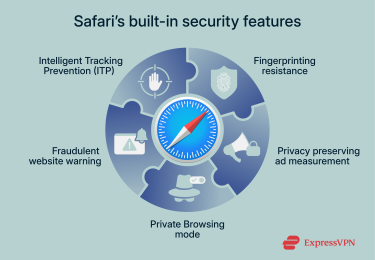
Fraudulent website warning
Safari includes a built-in warning system that alerts you when a site is suspected of phishing or attempting to distribute malware. These warnings help you avoid pages designed to steal information, such as usernames, passwords, or account details, or to install harmful software.
To determine whether a site is dangerous, Safari checks a hashed URL against safe-browsing services operated by Google and, in mainland China and Hong Kong, Tencent. The actual URL isn’t shared. Safari uses obfuscated address data to perform the check, but the safe-browsing provider may log your IP address as part of the check.
Apple’s security patch cycle
Safari doesn’t receive traditional standalone security updates. Because Safari and WebKit are built into the OS, most security fixes arrive through regular OS updates.
When Apple patches a WebKit vulnerability, the fix is delivered as part of the next OS release, and Safari receives that protection automatically once the device is updated. Apple also uses Rapid Security Responses (RSRs) to push urgent WebKit and Safari fixes between major OS updates.
How Safari’s design affects your privacy
Safari’s privacy trade-offs come from Apple’s design choices and the way WebKit works across different OSs. This doesn’t make Safari unsafe, but it does affect how much privacy you can expect.
Default search engine and data sharing
When you submit a query using Safari’s Smart Search, it sends that query to your default search engine. This is Google by default, unless you’ve changed it to a different search engine, such as Bing or DuckDuckGo. As the search engine handles the query, any data handling or privacy implications come down to that provider.
Moreover, when search suggestions or “preload top hit” functionality is switched on, Safari can send partial query data to the search engine or use that engine to fetch early results. If that’s enabled, some data leaves your device even before you press Enter or Search.
Fingerprinting weaknesses
Safari reduces the amount of device information websites can read, but it can’t stop fingerprinting completely. The browser still has to expose some information for websites to function. Modern fingerprinting techniques can combine these multiple low-detail signals, such as rendering behavior, meaning that some level of fingerprinting is possible, despite Safari’s protections.
How to use Safari safely
You can make your Safari experience safer by adjusting a few privacy settings and considering using some additional security and privacy tools.
Enable privacy settings in Safari
Most of Safari’s main privacy features, like ITP and fingerprinting resistance, are on by default. You can make sure they’re enabled in and further restrict what the browser can do in the settings.
macOS
To review your privacy settings on a Mac and find the extras, follow these steps:
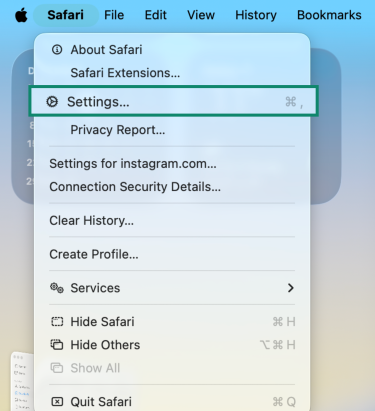
- Open the Safari browser, go to the Safari menu, and select Settings.
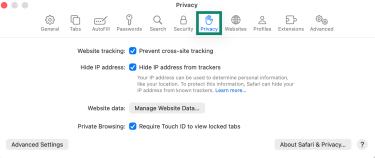
- Open the Privacy tab. Here, you can review and enable options like:
- Prevent cross-site tracking
- Hide IP address from trackers
- Require Touch ID (if available) or password to view locked tabs, if available
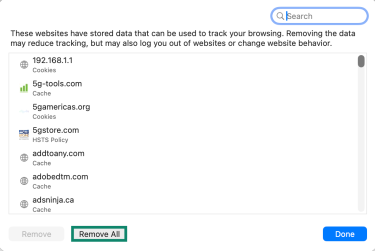
- If you select Manage Website Data, you can manually remove data stored by websites on your device, including cookies, cached files, local storage, service worker data, and HSTS entries. Clearing this information reduces how much websites can track you across sessions, but it may also sign you out of accounts or reset site preferences.
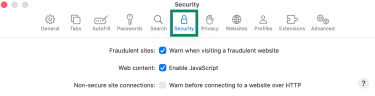
- Next, open the Security tab. Here, you can turn on Safari’s Fraudulent sites feature to allow the browser to warn you when visiting a fraudulent website. You can also enable warnings for Non-secure site connections and choose whether to Enable JavaScript.
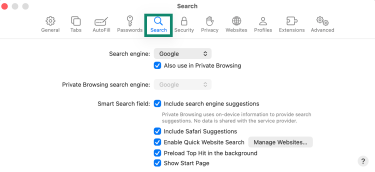
- From here, go to the Search tab, where you can choose your default search engine and enable or disable:
- Search engine suggestions: Sends what you type to your search engine for autocomplete, which means your keystrokes leave your device.
- Safari suggestions: Sends your query to Apple for Apple-powered suggestions, increasing the amount of off-device data.
- Preload Top Hit in the background: Loads the top result before you click it, allowing that site to see your IP and register a visit.
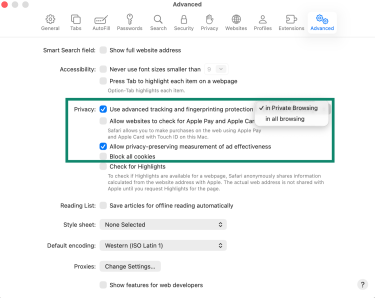
- Finally, in the Advanced tab, you can decide whether you want tracking and fingerprint protection in Private Browsing or in all browsing sessions, enable privacy-preserving measurement of ad effectiveness, and Block all cookies.
iOS and iPadOS
- Open Settings and scroll down to Apps, then choose Safari.
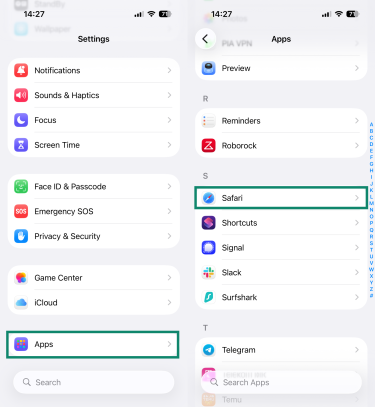
- Under Search, you can disable Search engine suggestions, Safari suggestions, and Preload Top Hit. Under General, you can choose to Block pop-ups.

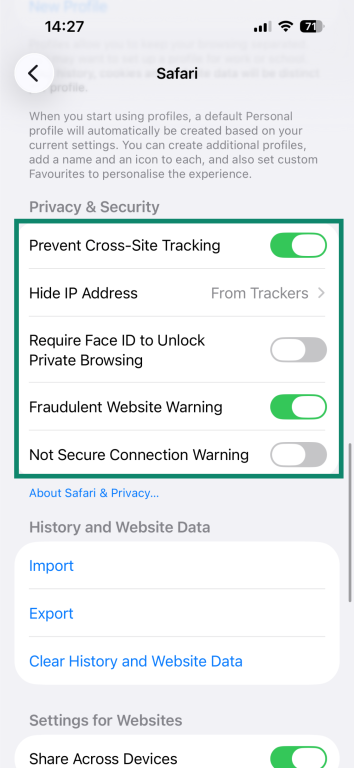
- Under Privacy & Security, you can turn on the following features: Prevent Cross-Site Tracking, Hide IP Address (From Trackers), Require Face ID to Unlock Private Browsing, Fraudulent Website Warning, and Not Secure Connections Warning.
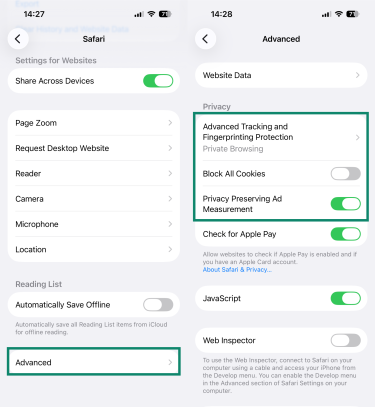
- Finally, go to Advanced at the bottom, where you can enable Advanced Tracking and Fingerprinting protection in Private Browsing only or in all browsing sessions, Privacy Preserving Ad Measurement, and Block All Cookies.
Use Safari extensions for extra protection
Reliable extensions can help fill the gaps left by built-in features, especially for blocking intrusive ads, managing cookies, or helping identify suspicious content. Safari supports vetted extensions from the App Store; Apple requires each one to explicitly request permission for the websites it can access and the specific actions it can perform, reducing the risk of overreaching data collection.
You can view available extensions in your Safari settings or find safe options in the App Store. If you want to explore additional tools, you can take a look at our guide to the best content blocker for Safari.
Combine Safari with a virtual private network (VPN)
A VPN adds protections that Safari can’t provide on its own. This includes encrypting your network data, which prevents your internet service provider (ISP) and network admin from seeing DNS queries or the website you connect to directly. It also hides your IP address from the websites you connect to, making it harder for them to link your visits across different networks or tie your activity back to your location.
Safari Private Browsing vs. Chrome Incognito
Both Safari’s Private Browsing and Chrome’s Incognito mode stop the browser from saving local data like history, search entries, and cookies once you close the window. Both browsers also let you lock private tabs with authentication on supported mobile devices, which protects local access but doesn’t change what websites or networks can see. The difference is that you have to manually enable this feature for Chrome, but it’s automatic for Safari when the app is backgrounded.
Where Safari and Chrome differ in these modes is how much tracking protection they add on top of that. Safari applies additional privacy measures during a private session: it removes tracking identifiers from URLs, limits third-party tracking through ITP, and blocks known trackers more aggressively.
Chrome’s Incognito mode doesn’t add comparable tracking protection. It mainly stops Chrome from storing local data; websites, advertisers, and your network provider can still see most of your activity the same way they can in normal browsing.
| Feature | Private Browsing (Safari) | Incognito (Chrome) |
| Local history | Clears browsing history locally | Clears browsing history locally |
| Tracker protection | Limits cross-site tracking via ITP | Doesn’t block trackers |
| Fingerprinting | Reduces fingerprinting signals | No fingerprinting protection |
| Private window lock | Automatic lock on supported devices | Manual lock on supported mobile devices |
| IP protection | No IP protection (unless used with iCloud Private Relay) | No IP protection |
| Visibility to ISP | Network activity still visible to the ISP | Network activity still visible to the ISP |
FAQ: Common questions about Safari safety
Can Safari be hacked?
Yes, Safari can be hacked in the same way any modern browser can be. However, Apple frequently patches WebKit vulnerabilities through macOS, iPadOS, and iOS updates, which reduces the risk of attacks. To stay protected, you should keep your OS updated so Safari receives the latest security fixes.
Does Safari hide my IP?
Safari can hide your IP address from known trackers when you enable the setting in Privacy options. However, it doesn’t hide your IP address from websites you visit, employers, network admins, or your internet service provider (ISP). Full IP masking needs a VPN or Apple’s iCloud Private Relay.
Is Safari safer than Chrome?
Safari offers stronger built-in tracking protection than Chrome, including Intelligent Tracking Prevention (ITP) and fingerprinting-reduction features. Chrome’s Incognito mode mainly prevents local history from being saved and doesn’t block trackers the way Safari does.
Is Safari good for private browsing?
Safari’s Private Browsing mode offers stronger protections than many browsers, including additional tracking prevention and automatic tab locking on supported devices. However, like all private browsing modes, it only limits local storage; it doesn’t hide your activity from websites, networks, or your internet service provider (ISP).
Take the first step to protect yourself online. Try ExpressVPN risk-free.
Get ExpressVPN