How to make your X account private: A comprehensive guide


X (formerly Twitter) lets you control who can see and interact with your posts. It adds a layer of privacy and security while still allowing you to post, read, share, and comment as usual.
People can still see your profile and know your account exists, but they can’t see your posts or interactions unless you approve their follow request. This gives you direct control over who can access your content and helps reduce unwanted attention.
This guide explains how to make your X account private on mobile and desktop. It also covers what changes after you make your account private, how to manage your settings over time, and how to review your followers.
How to make your X account private in 60 seconds
You can easily change your X account from public to private in your account privacy settings. The steps differ slightly depending on whether you’re using the mobile app or a desktop browser.
If you’re using a desktop browser, you can jump straight to the desktop steps here. For mobile, simply follow the steps below.
How to make your X account private on mobile
The steps to make your X account private on mobile are similar on Android and iOS:
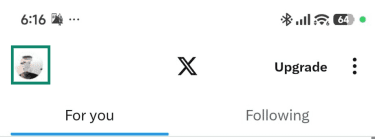
- Open the X app and tap on your picture or avatar on the top left side of your screen.
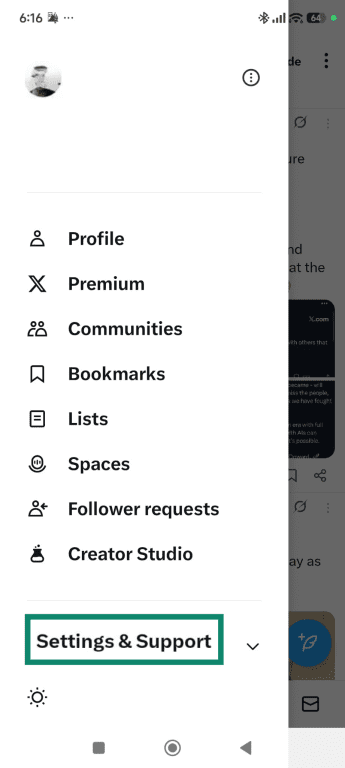
- On Android, tap Settings & support, on iPhone, skip to step 3.
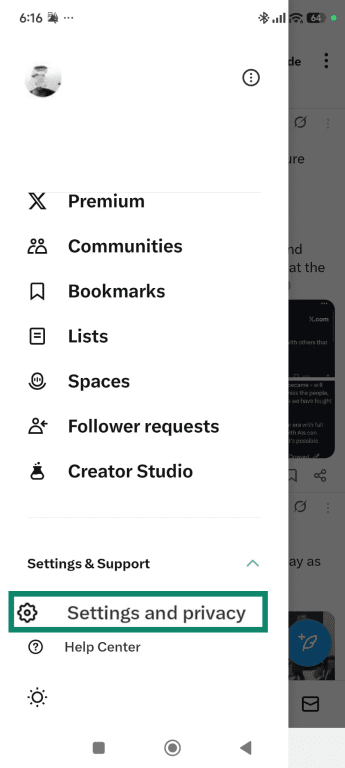
- Tap Settings and privacy.
- Tap Privacy and safety.
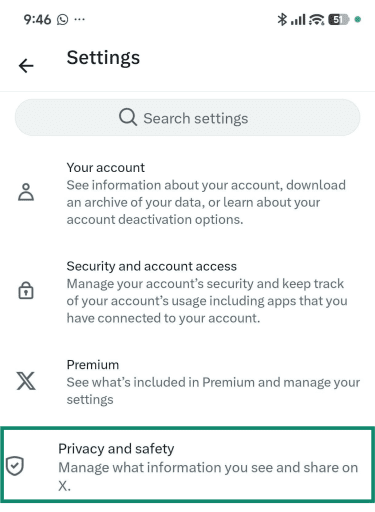
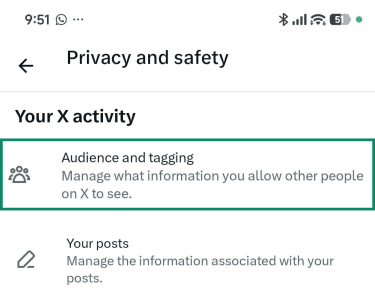
- Tap Audience and tagging.
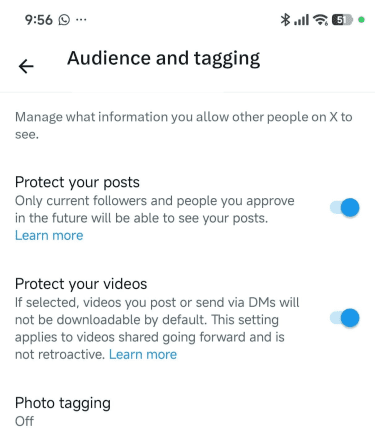
- The Protect your posts and Protect your videos options are disabled by default. Tap the slider to enable them and protect your account. You can also manage your photo tagging settings here.
How to make your X account private on desktop
- Go to X and click on More on the left menu bar.
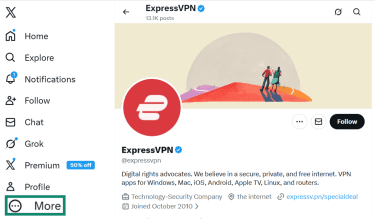
- Click Settings and privacy.
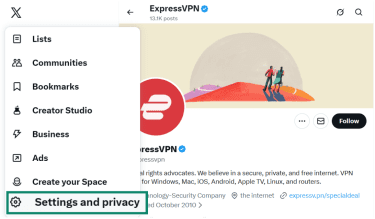
- Select Privacy and safety.
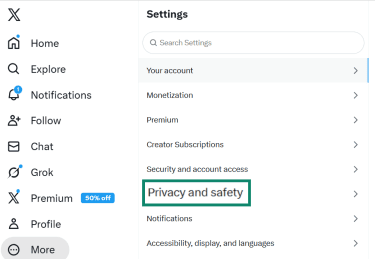
- Select Audience, Media, and tagging.
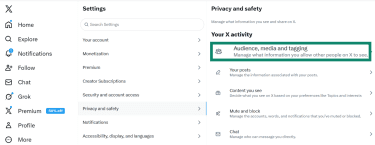
- The Protect your posts and Protect your videos options are both disabled by default. Enable them by checking the box. You can also manage who can tag you in a photo.
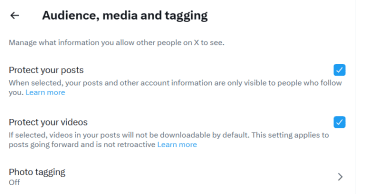
How to confirm your account is private
After adjusting your settings, check for the lock icon to ensure your changes were saved. On desktop, you’ll see it on the bottom left corner of your window, right next to your avatar and name. To check on your phone, tap your avatar on the top-left corner to open the menu sidebar, and you should see the lock next to your name.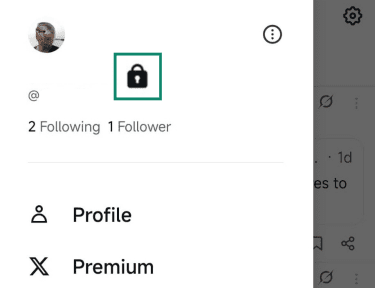
What happens when you make your X account private?
When you make your X account private, your current followers keep their access. All new followers must be approved to see:
- Posts on your profile
- Replies to other users
- Photos and videos you share
- Threads and conversations you participate in
If you want to limit access further, you’ll need to review your follower list and remove anyone you no longer want to have access to your profile. Once removed, that person will no longer be able to see your posts unless they send a new follow request and you approve it.
This approach gives you flexibility. You can make your account private, then gradually refine who has access over time instead of having to rebuild your follower list from scratch.
For stronger privacy, you can also block accounts. Blocking prevents the person from viewing your profile, finding you in the X search, or interacting with your account in any way.
However, privacy on social media is never absolute. Approved followers can still take screenshots, copy your content, and share it elsewhere. Protecting your account limits access, but it doesn’t prevent others from redistributing content once they’ve seen it.
If you connect third-party apps to your X account, such as Hootsuite or Buffer, they may also be able to access your posts, depending on the app and permissions you granted.
Will my old posts become private?
Once you protect your posts, that protection extends to your older posts as well. They’ll no longer appear publicly on your profile or show up in X search results.
However, there are a few exceptions:
- Your posts may remain temporarily cached by search engines.
- Previously indexed links may still appear in search results until search engines update their records.
Future posts will be private immediately after the setting is enabled.
What can non-followers still see on your profile?
Non-followers can still see:
- Your profile photo
- Banner image
- Username and display name
- Bio
- Location and website (if listed)
- Follower and following counts
They cannot see your posts, replies, or media unless you approve them as followers. This allows people to identify your account while still giving you full control over who can view your content.
Can others see my likes?
As of 2024, X made likes private for all users by default.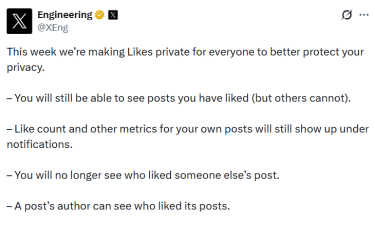
This means:
- Only you can see the full list of posts you’ve liked.
- Other users cannot view your liked post on your profile.
- You can still see how many likes your own posts receive.
- The author of a post can still see that you liked their post.
Previously, anyone could view your likes and use them to infer your interests, opinions, or behavior patterns. With likes now hidden, your interactions are less visible to strangers, advertisers, and casual viewers.
Your likes still influence your recommendations and feed, but they’re no longer part of your public profile.
Approving or rejecting follower requests
When someone requests to follow you, X sends a notification. You can review the request and choose whether to accept or decline it. The steps are similar on both desktop and mobile.
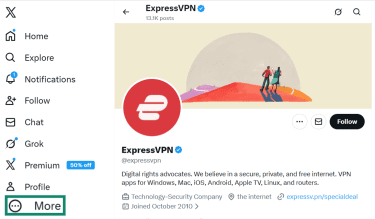
- On desktop, open X and click More in the sidebar. On mobile devices, skip to step 2.
- If you have any new followers, a number will appear next to the Follow requests section. Tap it to view the requests.
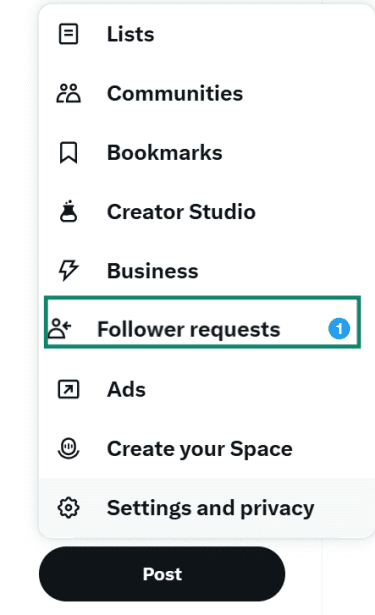
- You can see the username, X handle, and bio of the requester. You can choose to accept or decline it.
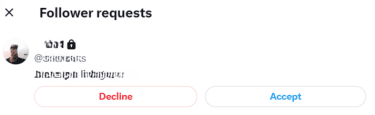
If you’re unsure, you can simply leave the request pending until you decide. The user isn’t notified unless you accept their request.
How to remove a follower
Follow these steps to remove a follower on desktop and mobile devices:
- Open X and click on the Profile option.
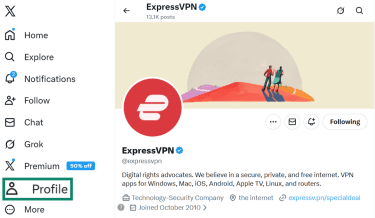
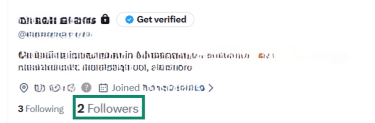
- Click on your number of followers, located under your bio.
- Find the follower you want to remove and click on the three dots next to their name to open the menu.
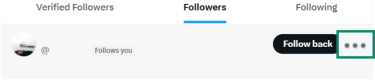
- Click Remove this follower.
The user won’t receive a notification that you removed them. Now, they can’t see your post unless they send a new request and you accept it.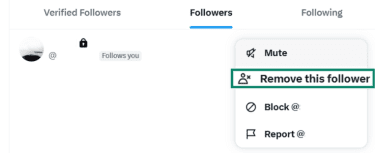
Why should you make your X account private?
People choose private accounts for various reasons, but the common theme is control over visibility.
- Audience control: A private account prevents strangers, bots, or unknown accounts from accessing your content without your permission. This is especially useful if you prefer sharing thoughts and updates with friends, family, or a smaller trusted circle.
- Reduced unwanted attention: Public posts can spread quickly and be shared beyond the platform. A private account limits who can view and interact with posts, which helps reduce exposure to spam, trolling, and unwanted replies. It doesn’t prevent all negative interactions, but it significantly reduces visibility to anyone outside an approved follower list.
- Public backlash: If an influencer or public person posts a controversial statement, it can attract negative comments, harassment, or targeted attention. Temporarily making your account private can help preserve the account reputation until things calm down.
- Separating personal and professional identities: Some X users maintain a public account for professional visibility while keeping a private account for personal conversations. A private account lets you share personal updates, opinions, and everyday moments without exposing them to coworkers, clients, or the general public. This gives you more freedom to express yourself without everything being tied to your professional identity. That said, privacy isn’t foolproof. Approved followers can still screenshot or share your posts outside the platform. Keeping your audience limited helps reduce exposure, but it doesn’t guarantee complete control over where your content ends up.
- Reduced search visibility: When your account is private, your posts are no longer publicly indexed or searchable by non-followers. This limits how easily your content can be discovered through X search or external search engines.
- Limited AI access: Public posts may be used to train AI systems, including Grok, which is developed by X’s parent company. When an account is private, posts are restricted to approved followers, which should prevent AI systems from accessing that content for training.
Additional settings to enhance X privacy
Protecting your posts controls who can follow and see your content, but other privacy settings help limit how people find, contact, and interact with you.
Reviewing these options allows you to reduce unwanted contact, control visibility, and minimize how your data is used across the platform.
These settings are available in Settings and privacy > Privacy and safety on all devices.
Control who can message you
Direct messages (DMs) allow people to contact you privately. Adjusting your message settings helps prevent unwanted conversations and spam.
X does not allow followers to automatically send you direct messages. By default, only accounts you follow can message you. However, if you enable the “Allow message requests from everyone” setting, anyone on X can send you a message request, even if you don’t follow them.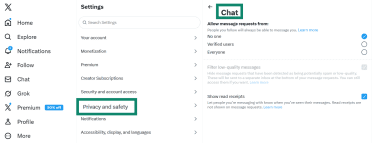
If you don’t want someone contacting you, you can block them or disable message requests from people you don’t follow. Limiting messages to trusted accounts reduces spam, impersonation attempts, and unwanted contact.
This setting is especially useful if your account was previously public or has attracted attention from unknown users.
Can you limit who can mention and tag you?
There’s no option to prevent people from tagging your X handle in their posts. However, you can go to the post, click the 3 dots to open the menu, and opt to leave the conversation. When you do this, your username is untagged, you stop receiving notifications, and others cannot mention you again in that thread.
When someone tags you in a photo, your username becomes associated with that image and may appear in notifications or alongside the post. This can be problematic if you’re tagged in content that’s inappropriate, misleading, or simply not something you want linked to your account.
By limiting or disabling photo tagging, you reduce the chances of being connected to images without your consent and maintain better control over how your profile appears to others.
Go to Settings and privacy > Privacy and Safety > Audience, media, and tagging and disable photo tagging completely or only give your followers permission to tag you.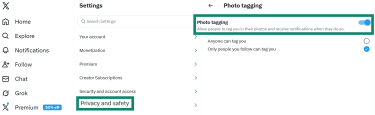
Manage discoverability and contacts sync
X includes settings that affect how easily people can find your account using your phone number, email address, or contacts.
These settings allow others to find your account if they already have your contact information.
You can disable discoverability options by going to Settings and privacy > Privacy and safety > Discoverability and contacts. The options are:
- Let people find you using your email address.
- Let people find you using your phone number.
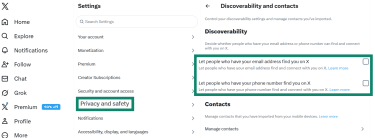 You can also disable contact syncing, which prevents X from uploading and using your device contacts. This helps limit unexpected follow requests and improves overall privacy.
Reduce personalization and ad tracking
X uses activity data to personalize your experience, including ads, recommendations, and suggested content. You can adjust personalization settings to reduce how much data is used for these purposes. Open the Safety and privacy settings and scroll to the bottom of the menu, where you’ll find the Data sharing and personalization menu.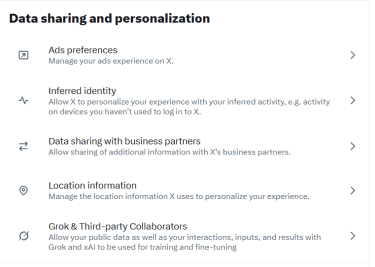
These settings allow you to:
- Limit ad personalization based on your activity.
- Restrict use of your browsing and interaction data.
- Reduce tracking across devices and sessions.
- Prevent Grok and third-party collaborators from using your data for AI training.
Although it doesn't eliminate ads, it lessens their correlation with your behavior. Combined with a private account, these settings help minimize your visible digital footprint and give you greater control over how your information is used.
FAQ: Common questions about making X private
How do I change my public account to private?
Do private accounts exist on X?
Can I temporarily hide my X account?
How can I make my following list private on X?
How can I ensure my privacy settings are correct?
What should I know about interacting with others when private?
Can people find you in search (X and Google)?
Take the first step to protect yourself online. Try ExpressVPN risk-free.
Get ExpressVPN






 Support Center
  FAQ
FAQ  VPN Setup Tutorials