Why does my search engine keep changing to Yahoo?


You open your browser, type a search, and Yahoo appears. You switch the default back to Google, but next time you try, it’s Yahoo again.
Most of the time, this happens because a browser hijacker has changed your search settings. It might have entered your system via a “free” download, a shady extension, or a bundled installer, then quietly forced Yahoo as your default search engine.
In this guide, you’ll learn about what’s causing the Yahoo redirect and how to get rid of it step by step. We’ll show you how to fix the issue across browsers and which tools you can use to reduce the risk of browser hijackers.
Understanding the Yahoo redirect problem
As mentioned above, when your searches keep defaulting to Yahoo, the problem is usually a browser hijacker. A browser hijacker is unwanted software that quietly changes key browser settings. Instead of keeping your preferred default search engine, homepage, or new tab page, it swaps them for its own and keeps switching them back after you try to fix them.
With a Yahoo redirect, the hijacker changes your browser settings so searches or new tabs are routed to Yahoo or a page that forwards to it. While the exact reason some hijackers route traffic through Yahoo isn’t clear, browser hijackers in general are known to monetize traffic through ad impressions, affiliate-style search feed abuse, or data collection.
Your searches may be routed through extra redirect domains so the people behind them can track what you do, show more ads, and earn money from your clicks. In more serious cases, the same browsing data may end up in leaked datasets. While not all hijackers sell data, there is a risk that this information may appear in online data markets, including data dumps on the dark web.
How hijackers infiltrate your browser
Hijackers usually arrive bundled with something that looks useful: a free PDF tool, video converter, cleaner, or “search helper,” for example. When you install the tool, there may be a pre-checked box that promises to do something like “enhance your browsing” or “set recommended search settings.” If you leave this checked, you might be installing a hijacker, because you’ve accidentally given the installer permission to add an extension that can reset your search engine to its own preference.
Shady extensions from unofficial sites work similarly. They ask for broad permissions so they can read and change data on the sites you visit, manage your apps and extensions, and control your homepage and search settings. Once installed, they quietly rewrite those settings and keep forcing Yahoo back even after you try to switch away.
Misleading pop-ups and fake “update your browser” messages are another route. Clicking through can install redirect malware without you realizing it. On top of that, browser sync can copy incorrect search settings from one device to another, so the same Yahoo redirect can follow you across your devices. Uninstalling the offending app or extension doesn’t always fix it, because leftover components or synced settings may remain in place.
Common signs of a compromised browser
These clues often show up when a hijacker is involved:
- Your default search engine keeps switching back to Yahoo after you change it.
- Your homepage or new tab page suddenly looks different or briefly shows a strange address before Yahoo loads.
- New toolbars or extensions appear that you don’t remember installing.
- Search results start to feel overloaded with extra sponsored links and strange ads.
- When you click a result, you briefly bounce through another site or tracking page before you reach the page you chose.
- Chrome or Edge says the browser is “managed by your organization” on a personal device.
Other potential reasons for Yahoo redirects
Sometimes the cause of a Yahoo redirect isn’t malware. For example, browser resets and profile refreshes may restore a browser’s original configuration. If Yahoo was previously set as the default search engine, by you or from an earlier customization, a reset may simply return it to that state.
It’s also worth noting that some browsers can sync preferences across all devices using the same account. If one device has Yahoo set as the default search engine, the synced profile can propagate that setting to your other devices automatically.
Finally, some security suites, privacy filters, and parental control apps enforce certain search configurations. Depending on the tool, this can override your browser's search settings.
It’s worth checking for these legitimate explanations. If none of them apply, then a browser hijacker is the most likely cause, and you should proceed with the removal steps.
Step-by-step: Removing Yahoo hijack and securing your browser
To stop the Yahoo redirect, you should follow the steps below in the proper order. If you only change a few browser settings, the hijacker may restore the hijack next time you open the browser or sync your account. Start with a malware scan, then reset key browser settings, and finally fine-tune things like extensions, shortcuts, and sync.
Scan for malware with anti-malware tools
Before you change any browser settings, run a full malware scan on your device. If the underlying hijacker or unwanted app isn’t removed, your search engine will keep switching back to Yahoo.
Use a reputable antivirus, make sure it’s up to date, and run a full system scan rather than a quick one. Remove or quarantine anything it flags as malware, then restart your device before moving on to the browser fixes.
Reset your browser settings
Once you’ve scanned for malware, you can reset your browser to its default settings. This should clear the changes the browser hijacker made to your search engine settings, homepage, and new tab page.
A reset may sign you out of sites and remove some custom settings, but it’s one of the most reliable ways to fix a stubborn Yahoo redirect.
Reset Chrome
If Chrome keeps changing to Yahoo, resetting its settings can clear these hidden changes. Here’s what to do.
- Open Chrome and check you’ve saved or bookmarked any important tabs. Then, click the three dots in the top-right corner and select Settings.

- Navigate to the left-hand menu and click Reset settings.
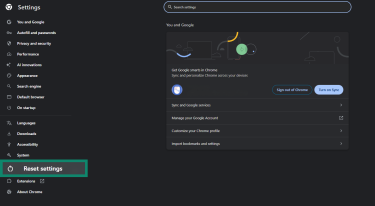
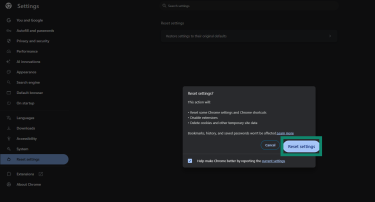
- Now, click Restore settings to their original defaults. Read the confirmation message and click Reset settings to confirm.
- Finally, close Chrome, open it again, and run a test search from the address bar to see if the Yahoo redirect has stopped.
Reset Firefox
Firefox has a built-in Refresh feature that resets many settings while keeping your essential data. Here are the steps to reset Firefox.
- Start by opening Firefox. Click the menu button (three horizontal lines) in the top-right corner and select Help.

- Click on More troubleshooting information.

- Navigate to the options on the right and click Refresh Firefox...

- Confirm by clicking Refresh Firefox again in the prompt that appears.

- Finally, wait for Firefox to restart, and then type a search in the address bar to check whether the Yahoo redirect has stopped.
Reset Microsoft Edge
If Edge keeps sending your searches to Yahoo, restoring its default settings can clear the search engine takeover. Here are the steps.
- Start by opening Microsoft Edge. Click the three dots in the top-right corner and select Settings.

- Click Reset settings in the left-hand menu, followed by Restore settings to their default values.

- Read the confirmation message and click Reset to confirm.
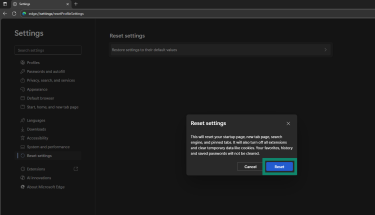
- Finally, close Edge, open it again, and run a search from the address bar to confirm that it no longer redirects to Yahoo.
Reset Safari
Safari doesn’t have a simple reset button like some other browsers, but you can still clear unwanted search engine changes.
- Start by opening Safari. Click Safari in the menu bar at the top of the screen and select Settings (or Preferences in older versions).
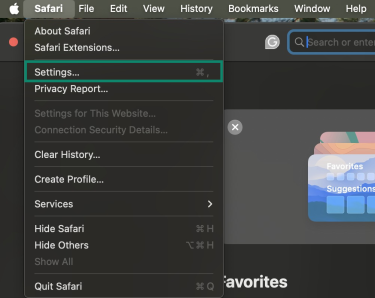
- Once done, open the Search tab and set the Search engine back to your preferred option, such as Google.

- Next, open the Extensions tab and select any extensions you don’t recognize.
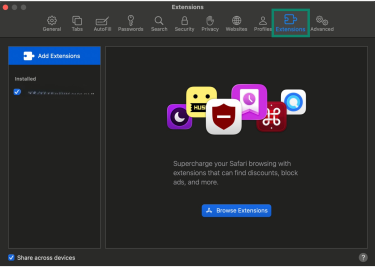
- Select Uninstall and follow the prompts to remove the extension.

- Click the Privacy tab, Manage Website Data…, and then Remove All to clear cached data that may be related to the Yahoo redirect.
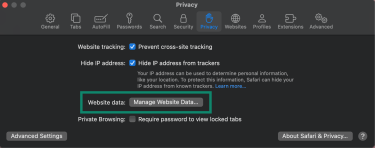
- Finally, close Safari, open it again, and type a search in the Smart Search field to confirm it uses your chosen search engine instead of Yahoo.
Remove malicious extensions and toolbars
A browser reset or refresh in Chrome, Firefox, and Edge removes or disables many extensions and add-ons, but it’s still worth double-checking what’s left behind. Browser hijackers often hide inside “useful” extensions or toolbars that can control your search engine settings.
Open your browser’s extensions or add-ons page and remove anything you don’t recognize, no longer use, or that relates to search, coupons, or toolbars. Deleting these completely helps prevent unwanted code from restoring Yahoo as your default search engine.
Check hosts file and shortcuts for redirects (advanced users only)
Some redirect malware changes system settings so the browser always opens a hijacked search page. On Windows and macOS, you can check your browser shortcuts on the desktop, taskbar, or Dock and make sure the target points only to the browser app with no extra URL added.
If the issue persists, check your system’s hosts file for unusual entries related to search engines or major sites and remove anything that is clearly malicious or added by the hijacker. If you’re unsure how to reset it safely, follow Microsoft’s instructions to reset the hosts file back to its default in Windows.
Check browser sync settings
Browser sync can quietly bring the Yahoo redirect back after you think you’ve fixed it. If you use Chrome, Firefox, Edge, or another synced browser, open its sync settings and review what’s being shared between devices.
Temporarily turn off sync for settings and extensions, or sign out, while you clean every device that uses that account. Once each browser is stable and using the correct search engine, turn sync back on so the clean configuration is what gets copied everywhere.
Fix Yahoo redirect on Android
If searches in the Android browser keep redirecting to Yahoo, a recently installed app or leftover browser data has probably changed your settings, and sometimes both play a role. For demonstration, we’ll use Chrome on Android, but the process is similar for other Android browsers.
- Start by opening the Settings app on your Android device. Tap Apps.

- Review the app list for extra browsers, cleaners, or “search helper” tools that you don’t use or that appeared around the time the Yahoo redirects began. Select the unwanted app, choose Uninstall, and tap OK.

- Once done, open Chrome (not the Google app), tap the three dots, and select Settings.

- Tap Search engine.
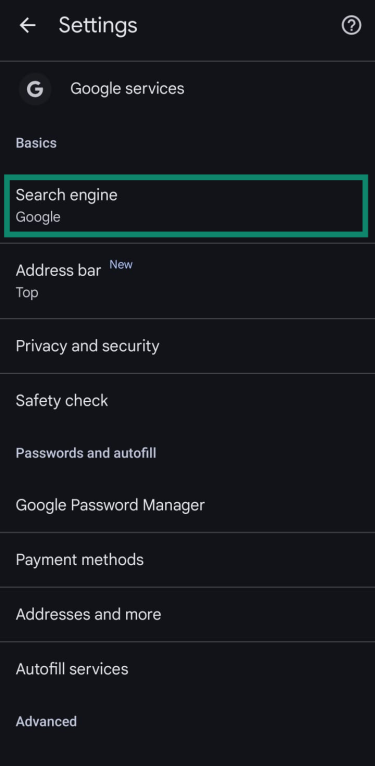
- Choose your preferred provider.

- Next, in Settings inside Chrome, tap Privacy and security.
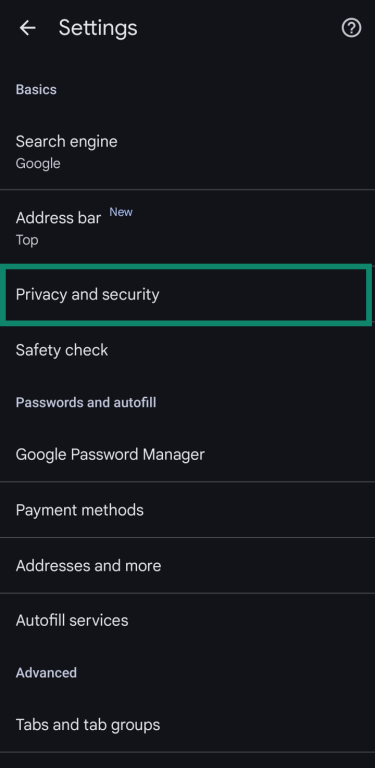
- Tap Delete browsing data.

- Set the time range to All time, select all check boxes, and then tap Delete data.
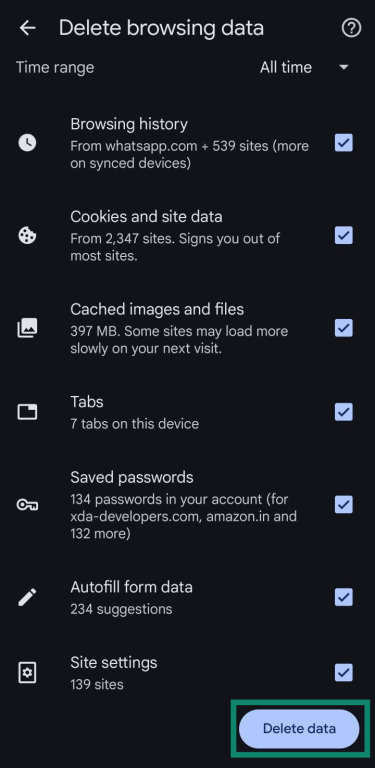
- Finally, close Chrome, reopen it, and enter a search in the address bar to confirm it no longer redirects to Yahoo.
Fix Yahoo redirect on iPhone
On iPhone, the Yahoo redirect usually comes from Safari settings, cached data, or occasionally a malicious configuration profile.
- Start by opening the Settings app on your iPhone. Tap Apps, then Safari.

- Select Search Engine, then choose your preferred provider.
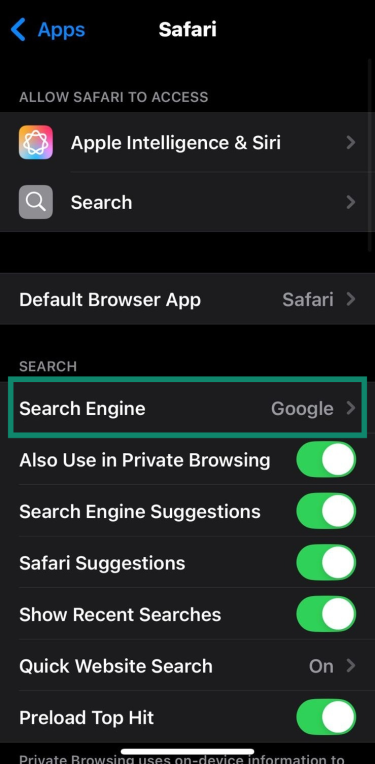
- Head back to Safari in Apps.

- Scroll down to History and Website Data, then tap on Clear History and Website Data to remove cached pages that may trigger the redirect.

- Set the Clear timeframe to All history.

- Finally, open Safari and type a search in the address bar to confirm it now uses the search engine you chose and no longer switches back to Yahoo.
If you use Chrome or another browser on iPhone, the steps will be similar: change the default search engine, clear browsing data, and test with a fresh search.
How VPNs help protect against browser hijacking
A virtual private network (VPN) won’t remove a browser hijacker that’s already on your device (you’ll need an antivirus for that). However, if you choose a VPN like ExpressVPN that has threat protection, this can help prevent accidental visits to the kinds of sites that spread hijackers in the first place.
VPNs with built-in threat blocking
Many hijacks start via shady download pages, fake “update” prompts, or aggressive ads that push unwanted software. ExpressVPN offers built-in threat protection, which can block connections to known tracker and malware domains before those pages load, reducing your exposure to scam sites, including those that host “search helpers” or extensions that, once downloaded, can force Yahoo as your default search engine.
This isn’t a replacement for antivirus software, but it does reduce your exposure to the kinds of risky pages and scripts that lead to redirects, even if it can’t help with risks that come from what you choose to click on.
Domain Name System (DNS) protection and encrypted browsing
On public or poorly secured Wi-Fi, attackers can sometimes tamper with DNS or inject redirects into unencrypted traffic. With ExpressVPN turned on, your traffic is encrypted, and your DNS requests go through its servers instead of the local network.
This makes it much harder for anyone on the same network to silently steer you toward spoofed search pages or malicious download links.
Preventing tracker scripts that enable hijacks
Ad networks and hijack campaigns often use third-party trackers to profile your browsing habits and target you with specific ads or malicious content. ExpressVPN’s Threat Manager blocks connections to known tracking and malicious domains, which reduces this kind of profiling. It won’t stop every social engineering attempt, but it can reduce your exposure to some of the targeted or repetitive, risky ads behind these campaigns.
Preventing Yahoo redirects in the future
Once your browser is stable again, the priority is to keep control of your search settings and avoid another hijack. Here’s how.
Use a reliable antivirus
Even when you’re careful, there’s always a chance of clicking the wrong link or installing a shady app. By running a reliable antivirus with real-time protection, automatic updates, and regular scans, you’ll have a better chance of blocking hijackers before they can get ahold of your system. Set the antivirus to update and scan automatically so you don't have to rely on manual checks every time you install new software.
Keep browsers and operating systems updated
Out-of-date browsers and operating systems are easy for attackers to exploit. Turn on automatic updates for your OS and for whichever browsers you use. New versions will patch security holes and strengthen the built-in protections that stop unsafe sites and extensions from changing your settings without your knowledge.
Learn to recognize phishing and social engineering
Many redirects start with persuasion instead of obvious malware, such as fake update pop-ups, urgent warning banners, and too-good-to-be-true “optimizer” tools. Close unexpected download prompts, ignore urgent messages from sites you don’t fully trust, and be cautious with tools that claim they will “fix” your browser in one click.
Advanced troubleshooting (for persistent hijacks)
If the Yahoo redirect still appears after a malware scan and a browser reset, it’s worth digging a bit deeper.
What to do if resetting doesn’t work
If your search engine still keeps changing to Yahoo after a complete reset, try a few extra checks:
- Create a brand-new browser profile and see if the redirect appears there as well.
- Turn off browser sync completely and test again on the same device.
- Remove and reinstall any extensions you decided to keep after the reset.
- Run a second scan with a different reputable anti-malware tool to catch anything your main antivirus missed.
- Check scheduled tasks, startup items, and login items for unfamiliar entries that may relaunch the hijacker.
- Test another browser for a while to see if the redirect is limited to one browser or affects the whole system.
If the redirect only affects one profile or one browser, it is usually a stubborn local hijack rather than a system-wide or network-level problem. While persistent redirects can occasionally involve system-level settings, in most cases the issue can be resolved by carefully following the steps above.
Should I reinstall the browser or OS?
Reinstalling the browser can help if a profile has become badly corrupted. Removing Chrome, Firefox, Edge, or Safari and then installing a fresh copy is often simpler than chasing every stray setting. Make sure you back up bookmarks and passwords first, and avoid turning sync back on until you’re sure the clean install behaves normally.
Reinstalling the entire operating system usually removes the hijacker, but it takes time and effort and only makes sense if you see broader problems, such as crashes, repeated malware infections, or strange behavior outside the browser.
Before reinstalling the operating system, test the same accounts on another device and on a different network so you can confirm whether a full rebuild is really necessary.
When to get professional IT help
If you’ve tried the removal steps described above and run multiple security scans, and the Yahoo redirect still comes back, you could ask a professional for help. This is especially true on work devices or shared family PCs where hidden software, old admin tools, or layered security policies can be hard to spot on your own.
If the device handles sensitive work, banking, or company data, getting an experienced technician to take a closer look is usually the safest option.
FAQ: Common questions about Yahoo redirect
Can a VPN stop my search engine from switching to Yahoo?
A VPN won’t change your browser settings, so it can’t directly stop your search engine from switching to Yahoo. If your browser is already hijacked, you’ll need to remove unwanted software, reset the browser, and fix sync. A VPN with threat protection can, however, help with prevention by making it harder for you to reach the kinds of sites that try to install hijackers in the first place.
Can Yahoo redirects affect all browsers on my device at once?
Yes, it’s possible. If the cause is something deeper than one browser profile, such as shared settings, sync, or network configuration, the same redirect can appear in several browsers. Checking and resetting each browser in turn usually helps isolate where the change is coming from.
Can I remove Yahoo redirect without losing my bookmarks and settings?
In many cases, yes. It’s often enough to scan for unwanted software, remove suspicious extensions, and reset search settings, without touching bookmarks. When using a browser’s reset or refresh option, most will clearly show what will be kept, and there’s always the option to export bookmarks first as an extra precaution.
Is Yahoo redirect a virus or just a hijack?
The Yahoo redirect is usually a form of browser hijacking or adware, not a classic virus that spreads on its own, but it can still interfere with your searches and collect data about your browsing.
Take the first step to protect yourself online. Try ExpressVPN risk-free.
Get ExpressVPN